Request paperwork in Briefcase Ledger
Request bank statements and invoices from clients, bulk import deferred income from a CSV, and restrict who can forward emails to Briefcase.
Request paperwork in Briefcase Ledger (formerly Briefcase One)
You can now request two types of paperwork in Briefcase Ledger: bank statements and invoices.
Bank statements
First, add a bank account — either manually or by connecting a bank feed. Then tick the checkbox next to the account and choose "Request bank statement" from the popover. Specify the months you need, set an assignee and due date, add an optional message, and send.
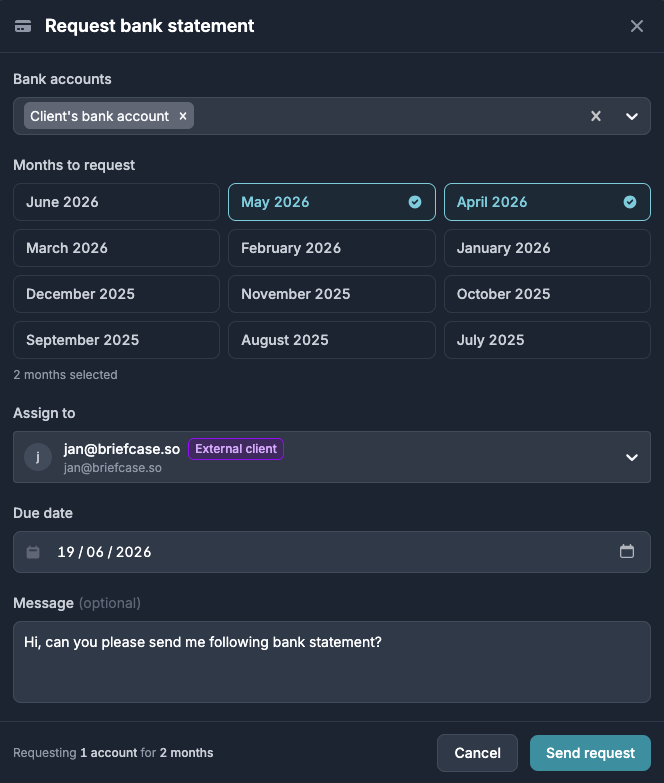
The assignee can be an existing Briefcase user (internal) or someone without an account (external). They'll receive an email listing the requested items.
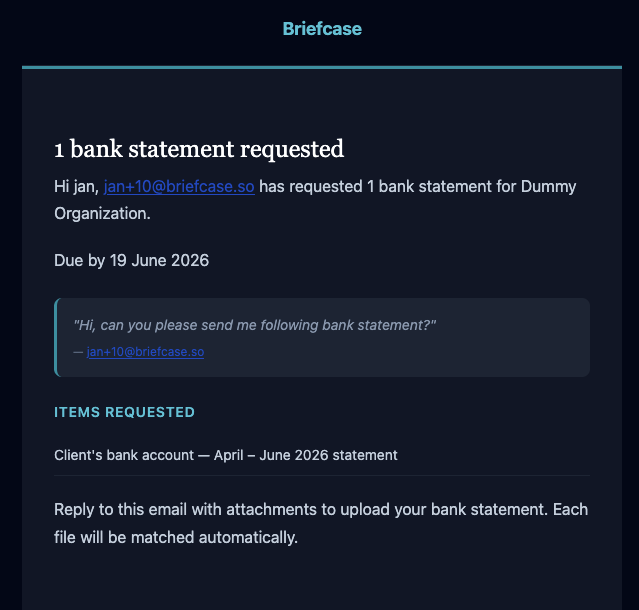
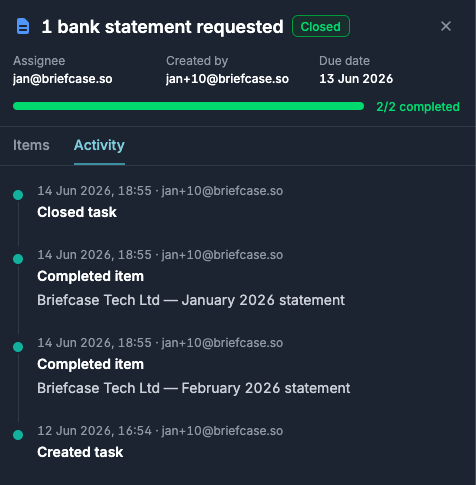
The assignee replies to that email with the paperwork, and Briefcase automatically triages and processes the attachment. Once the statement's transactions are assigned to the bank account, Briefcase auto-completes the task with a full audit trail.
Invoices
Requesting invoices works much the same way:
- Select the bank transactions you want invoices for.
- Add the assignee and due date.
- The client replies to the request email with the invoices. Briefcase matches each one against its bank transaction and auto-completes the task.
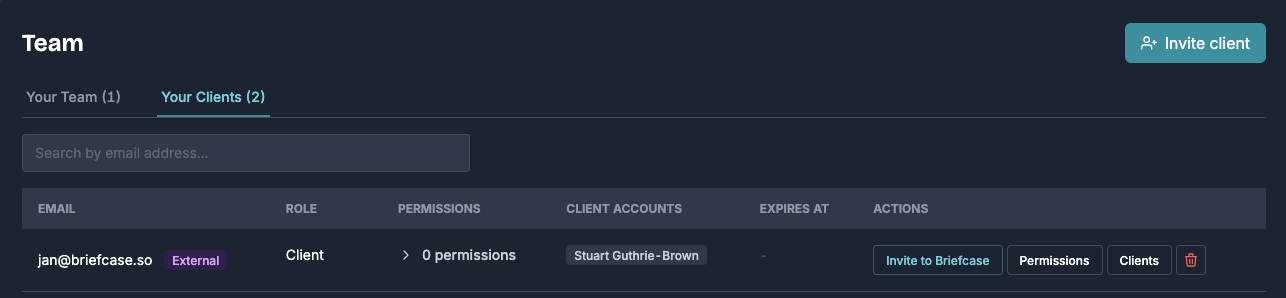
External users can also be invited to Briefcase to unlock more upload methods (e.g. WhatsApp) or to do their own bookkeeping. Go to Settings → Invite to Briefcase to send an invitation.
Bulk import deferred income
You can now bulk import deferrals via CSV. Go to the Deferred Income Inbox, click the dropdown next to "Add deferred income", and select "Bulk import":
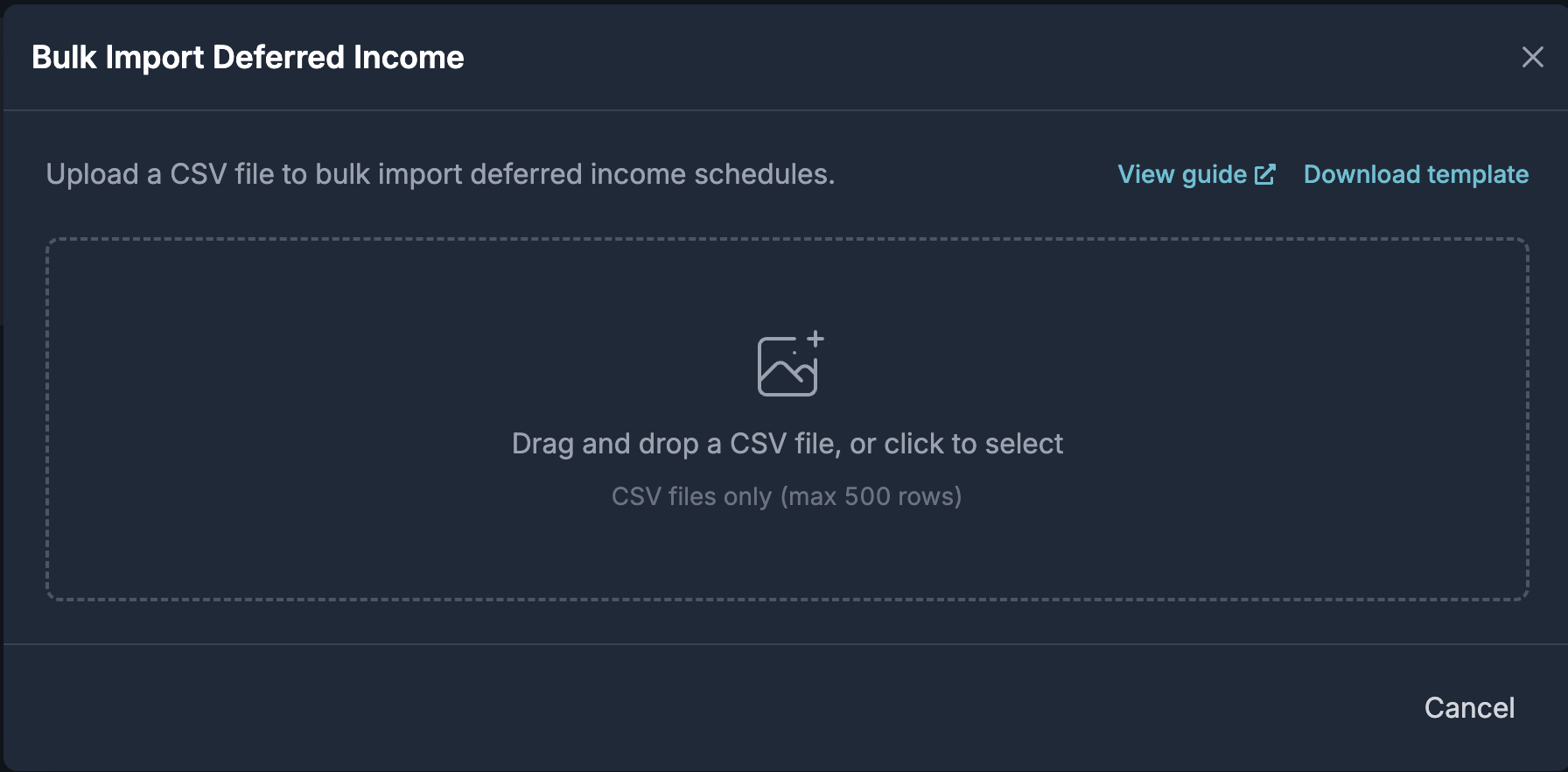
Click "View guide" or visit the support article to learn how to format the CSV.
Drag and drop or click to upload your CSV. Briefcase validates the file and flags any errors row by row. Once every row is valid, click "Import x rows" to start processing.
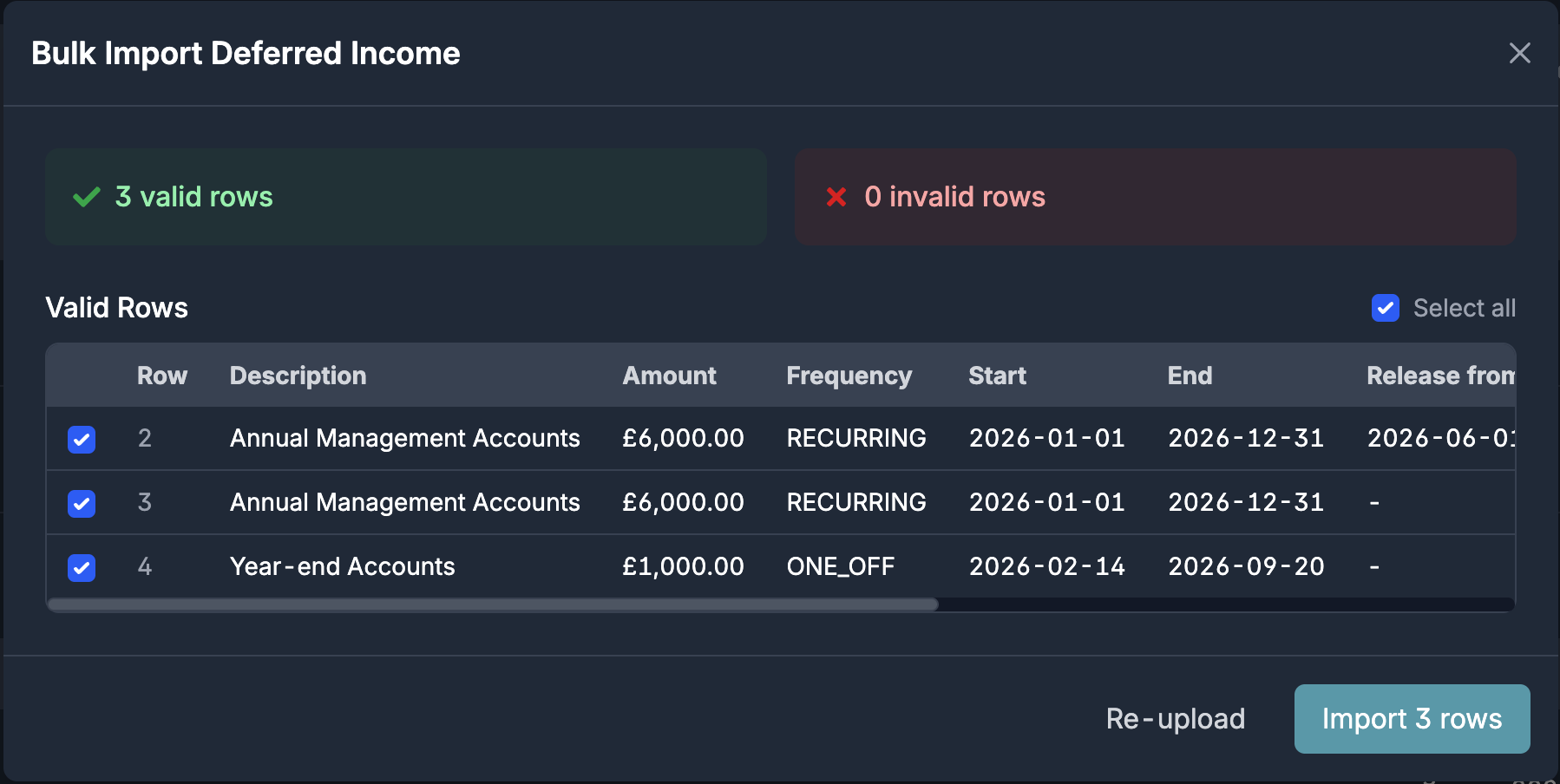
Briefcase processes each row and creates a deferred income entry, which then appears in the "Awaiting review" section. From there, publish as normal.
Restrict who can forward emails to Briefcase
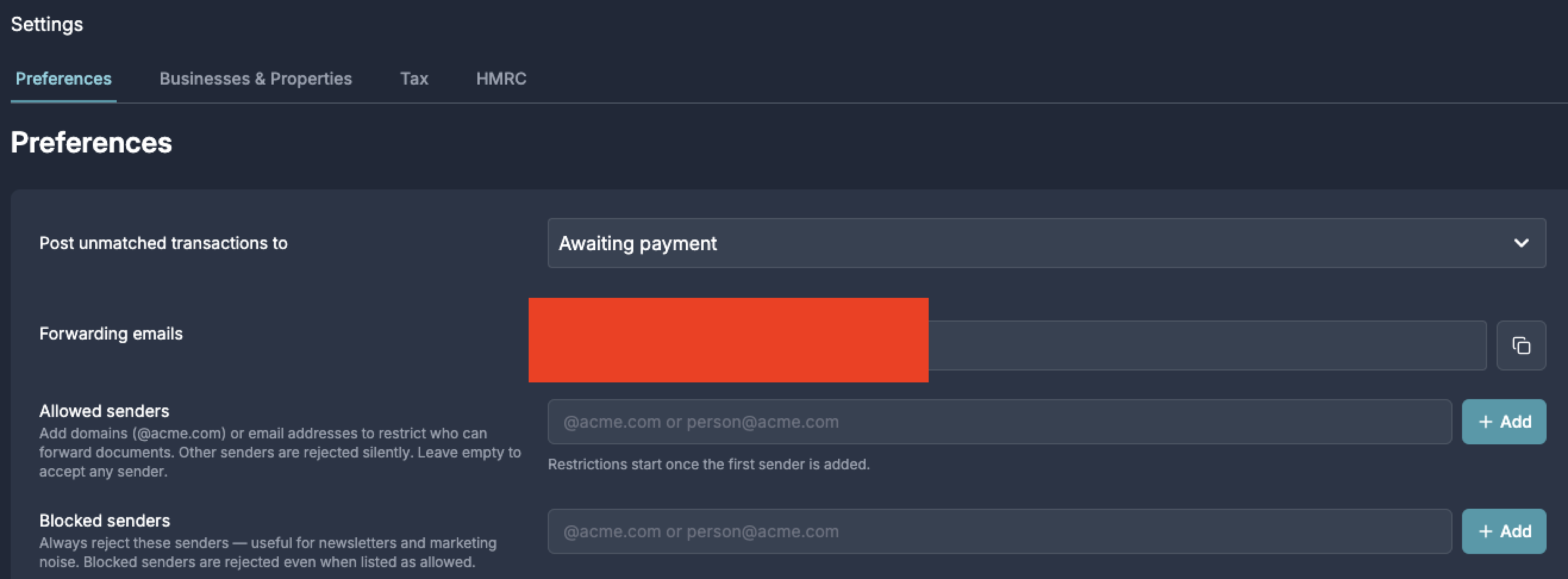
By default, Briefcase accepts forwarded emails from anyone. To restrict this, update the filter in Business Settings:
- Specify Allowed senders (whitelist): only the listed domains or email addresses can forward emails to Briefcase.
- Specify Blocked senders (blacklist): the listed domains or email addresses cannot forward emails to Briefcase.