Export working papers and import fully amortised schedules
Export a closed working paper to Excel — every reconciliation schedule and the evidence behind it — and add prepayment, deferred income and fixed asset schedules whose amortisation or depreciation has already been fully posted.
Working papers export
Briefcase now lets you export a closed working paper to Excel. The export includes every schedule used to reconcile each balance sheet account, along with the evidence that supports them. To use this feature:
- Ensure that the working paper is closed.
- From the working papers dashboard, click “View working paper” on the working paper that you wish to export.
- On the working paper overview page, click “Export” in the top right:
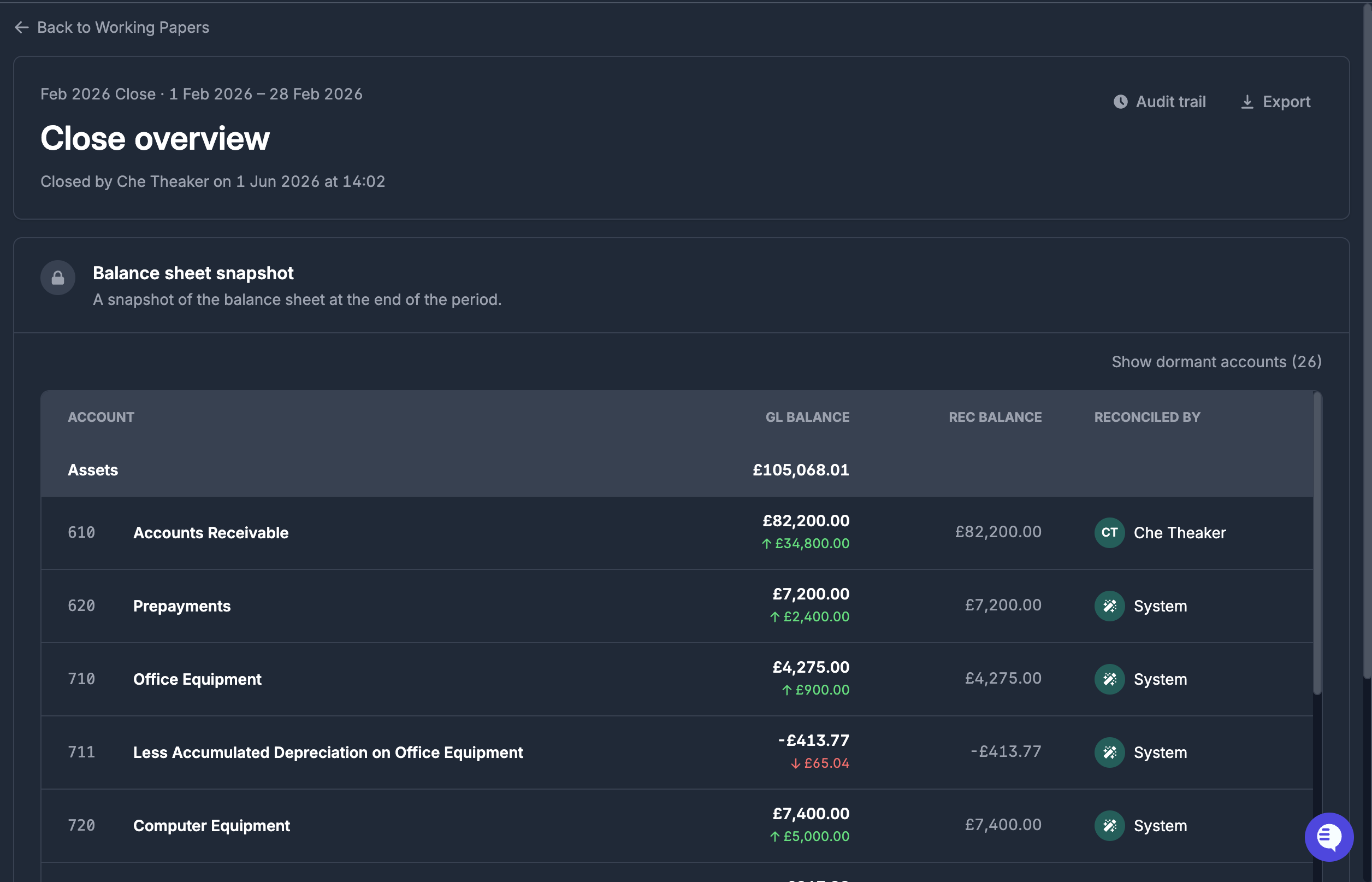
- A zip file is downloaded automatically. When you unzip it, you’ll see 3 items:
- README.md → explains what’s included in the export
- attachments/ folder → the uploaded attachments that support the schedules in the working paper
- WorkingPapers.xlsx → the working paper export itself
- Open the WorkingPapers.xlsx file in Excel. The first tab is the summary tab, which gives an overview of the working paper — client name, period, and who opened and closed it (and when) — along with a breakdown of each balance sheet account:
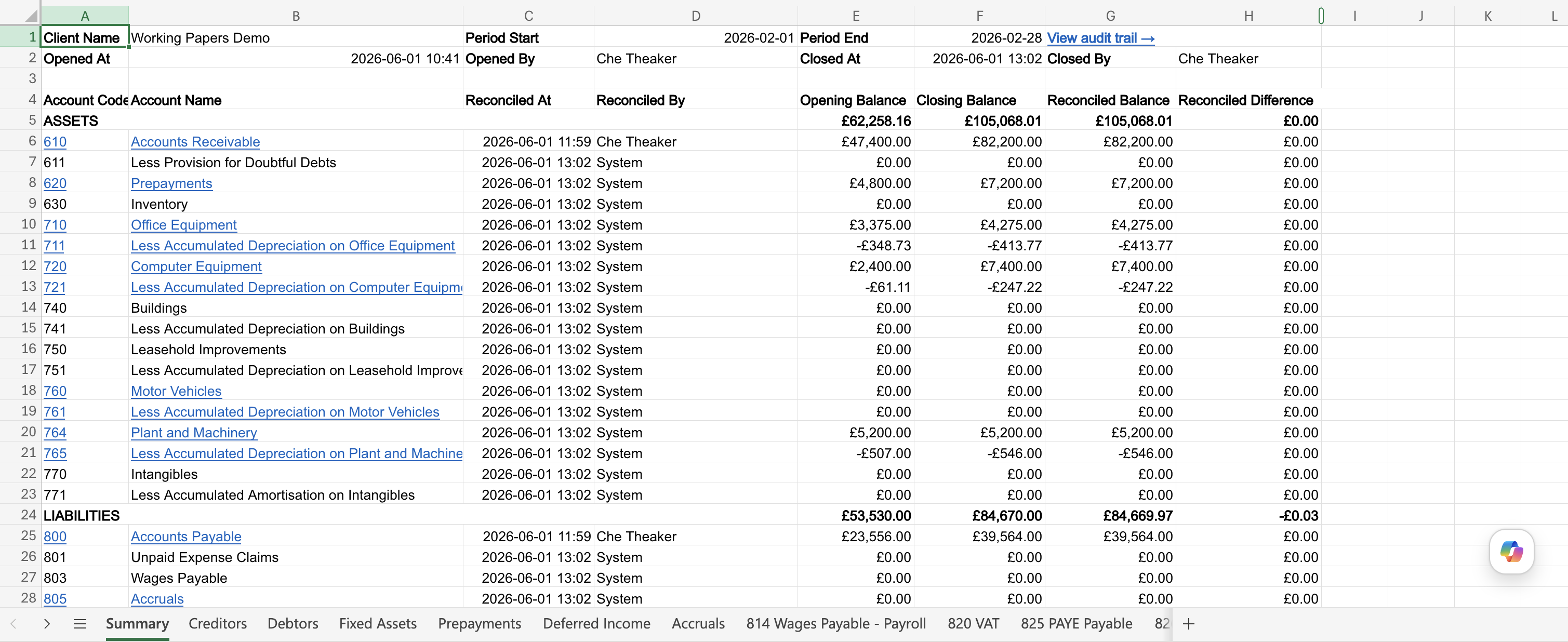
- Each balance sheet account links to its own tab with more detail: the schedule used to reconcile it, plus links to any supporting documents in the attachments/ folder. Accounts with an opening and closing balance of £0 for the period have no linked schedule, as these are automatically reconciled as “dormant”.
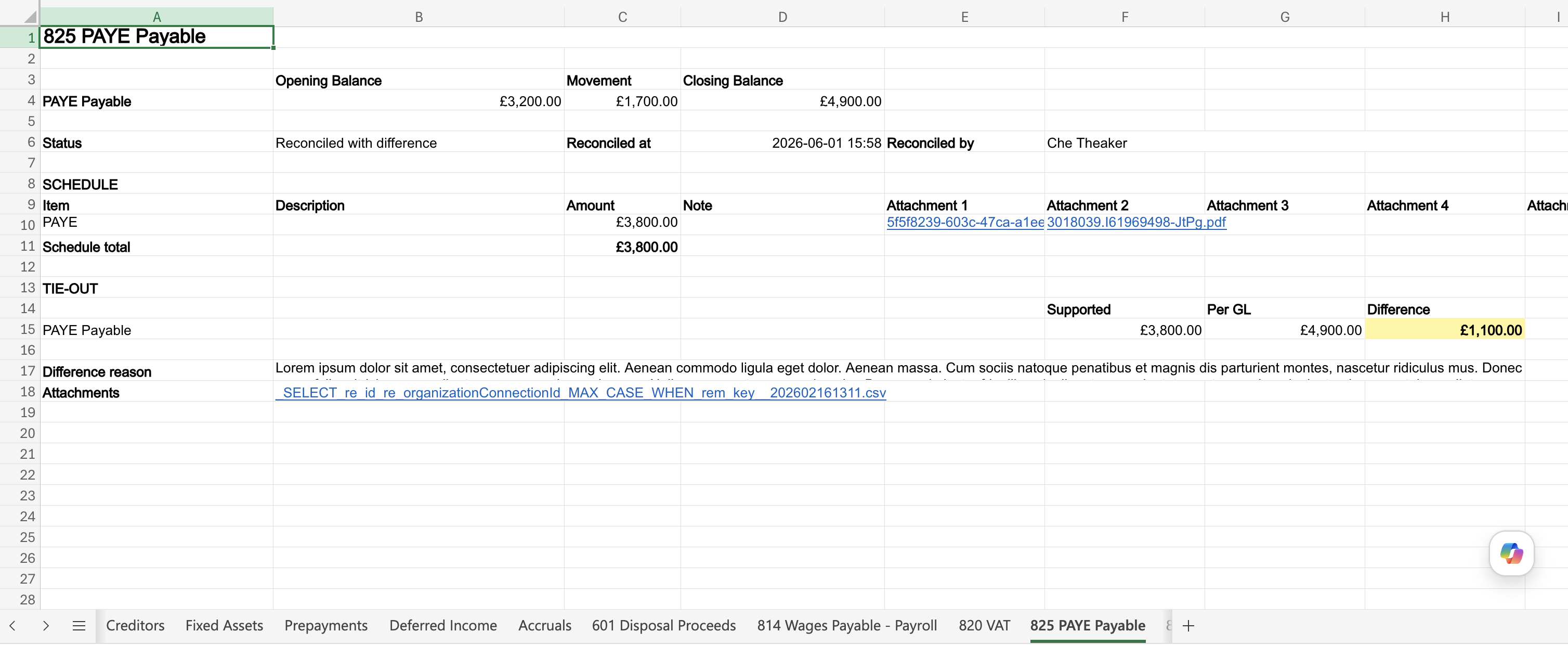
- For example, the PAYE Payable tab shows who reconciled the account, when, and the schedule used. Click the attachment links to view them. If the account was reconciled with a difference, that’s surfaced here too:
Import fully amortised / depreciated schedules
Briefcase now lets you add prepayment, deferred income and fixed asset schedules where the amortisation or depreciation has already been fully posted. This is useful for making sure the relevant tracker and working papers reconcile. To use this feature:
- Create a new manual prepayment, deferred income or fixed asset from the inbox page.
- Select the “Already amortised” or “Already depreciated” switch:

- Fill in the remaining inputs as normal. Every period in the schedule will show as a tracked period, meaning Briefcase will not post any amortisation or depreciation journals for it:
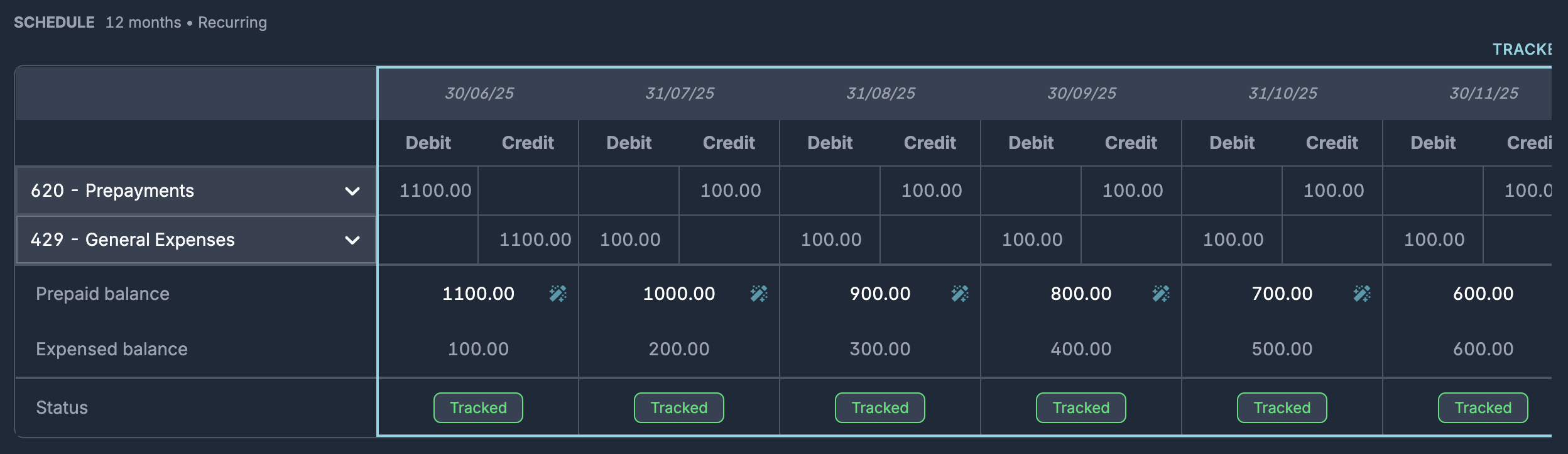
- Review the estimated balances for each period. If any are incorrect, you can update them before or after publishing.
- Publish the schedule. It will now appear on the relevant tracker so you can confirm your schedules reconcile correctly.
For more information on how this works, check out these sections in the following guides: Prepayments, Deferred Income and Fixed Assets.
Briefcase also lets you mark schedules as fully amortised during the bulk upload of each schedule type. See these guides for more: Prepayments, Deferred Income and Fixed Assets.