How to request paperworks on Briefcase Ledger?
When you're doing the books in Briefcase Ledger, you'll often hit a bank transaction with no invoice attached, or need a bank statement to reconcile a period. Instead of chasing your client over email or WhatsApp yourself, you can request the paperwork directly from Briefcase. Briefcase emails the request, chases it for you with automatic reminders, and then processes and files whatever comes back — auto-completing the task once the paperwork is matched.
How to request paperwork in Briefcase Ledger - Demo
You can request two types of paperwork:
1. Invoices: for specific bank transactions that are missing a supporting document
2. Bank statements: for a bank account, covering the months you need
- Note: You can only request paperwork for transactions that aren't already reconciled. If any reconciled transaction is selected, the Request button is disabled.
Request a bank statement
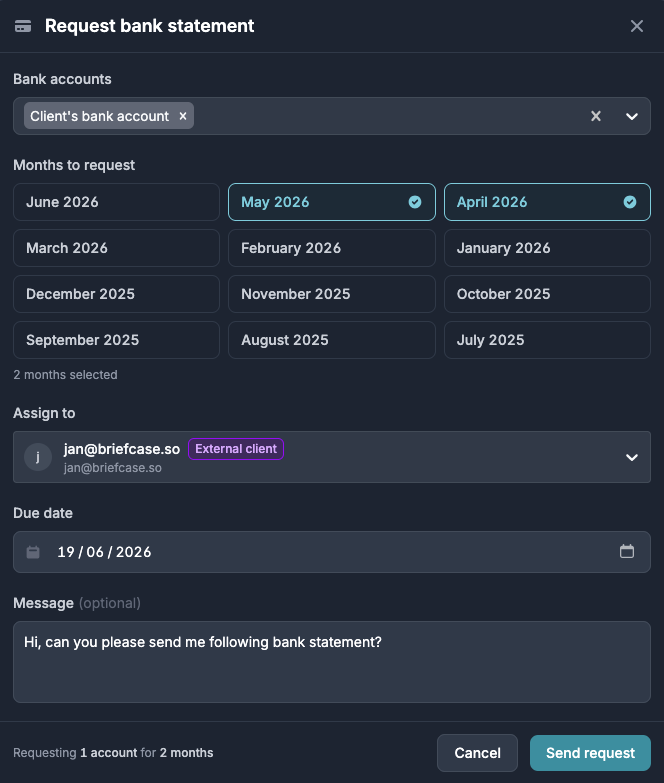
First, add a bank account — either manually or by connecting a bank feed. Then tick the checkbox(es) next to the account and choose "Request bank statement" from the popover. Specify the months you need, set an assignee and due date, add an optional message, and send.
Request Invoices
Requesting invoices works much the same way:
1. Select the bank transactions you want invoices for.
2. Add the assignee and due date.
3. The client replies to the request email with the invoices. Briefcase matches each one against its bank transaction and auto-completes the task.
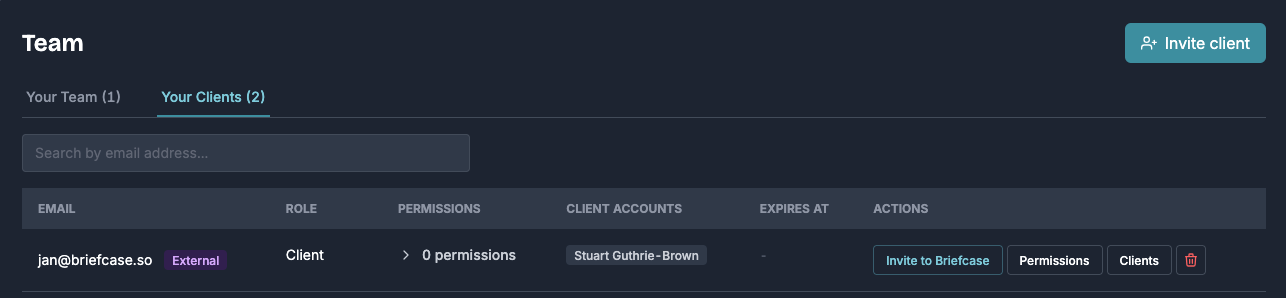
Note: External users can also be invited to Briefcase to unlock more upload methods (e.g. WhatsApp) or to do their own bookkeeping. Go to Settings → Invite to Briefcase to send an invitation.
What happens after you send a request
1. The assignee gets an email listing the exact items you've requested. This works whether they're an internal Briefcase user or an external client with no account.
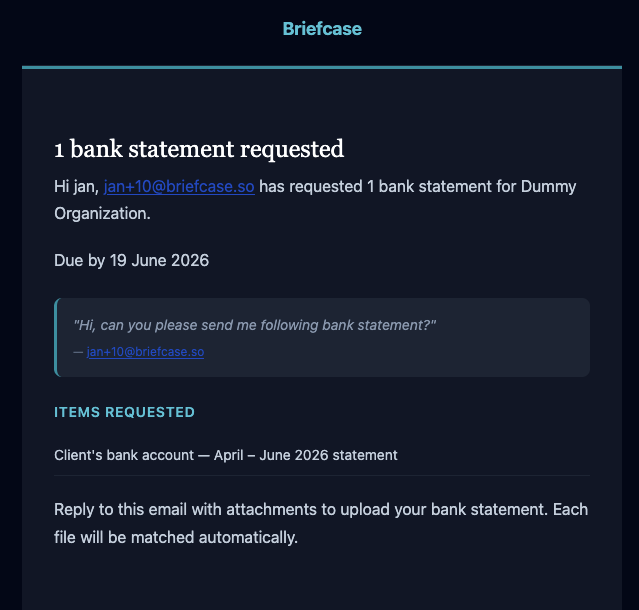
2. They reply to that email with the paperwork attached. No login or portal needed.
3. Briefcase triages and processes the attachment automatically:
- Invoices: Briefcase matches each invoice against its bank transaction.
- Bank statements: Briefcase processes the statement and assigns its transactions to the bank account.
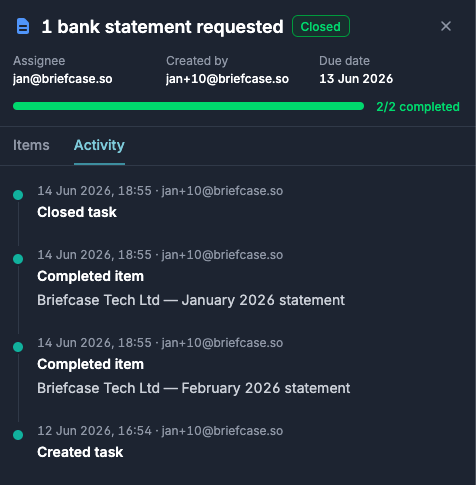
4. The task auto-completes once the paperwork is matched, with a full audit trail of what was requested, when, and what came back.
Automatic reminders
You don't need to chase manually. Briefcase emails the assignee reminders on a set schedule around the due date (every reminder is recorded on the task's activity trail):
- 1 day after the request is created
- 14 days, 7 days, 2 days and 1 day before the due date
- 1 day, 2 days and 7 days after the due date if it's still outstanding
Tracking your requests
Open requests appear on the Tasks page, where you can see each task's status and due date at a glance — including an Overdue flag or a Due countdown. Completed requests stay on record with their full activity history.

FAQ
1. Who can send requests?
> Any team member with financial-close access. Client-role users can't create requests.
2. Do clients need a Briefcase login to respond?
> No. External clients simply reply to the request email with the paperwork attached, and Briefcase does the rest.
> A login is only needed if you want to give them extra upload methods like WhatsApp. Learn more about inviting current team members or external clients here.
3. What if the invoice or statement doesn't match automatically?
> The task stays open so you can review it. Auto-completion only happens once Briefcase has matched the invoice to its transaction (or assigned the statement's transactions to the account).
4. Can I request paperwork for a transaction that's already reconciled?
> No, requests can only be sent for unreconciled transactions.