How does Briefcase handle prepayments?
This guide covers how AI agent detects prepayments, drafts prepayment schedules, and posts recurring journal entries.
When you upload an invoice, after our bookkeeping AI agent codes transactions, our prepayment AI agent also reviews the transaction. If it recognises a prepaid expense, it drafts a prepayment schedule for you.
When you publish the schedule, Briefcase will post the recurring journal entries automatically.
Video walkthrough
How it works
Upload an invoice or receipt via email, web, or WhatsApp. Once the bookkeeping workflow finishes, the prepayment AI agent analyses the transaction and flags to you if it detects a prepayment.
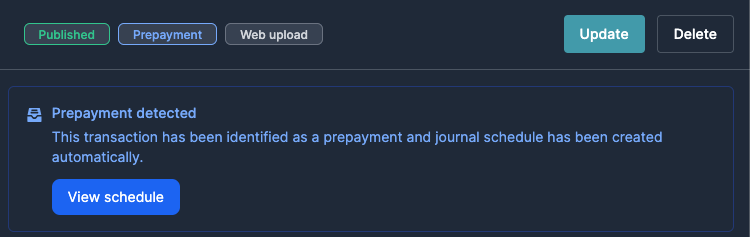
If it’s a prepaid expense, the agent creates a draft schedule which is visible in the new Prepayments tab and on the transaction details page.
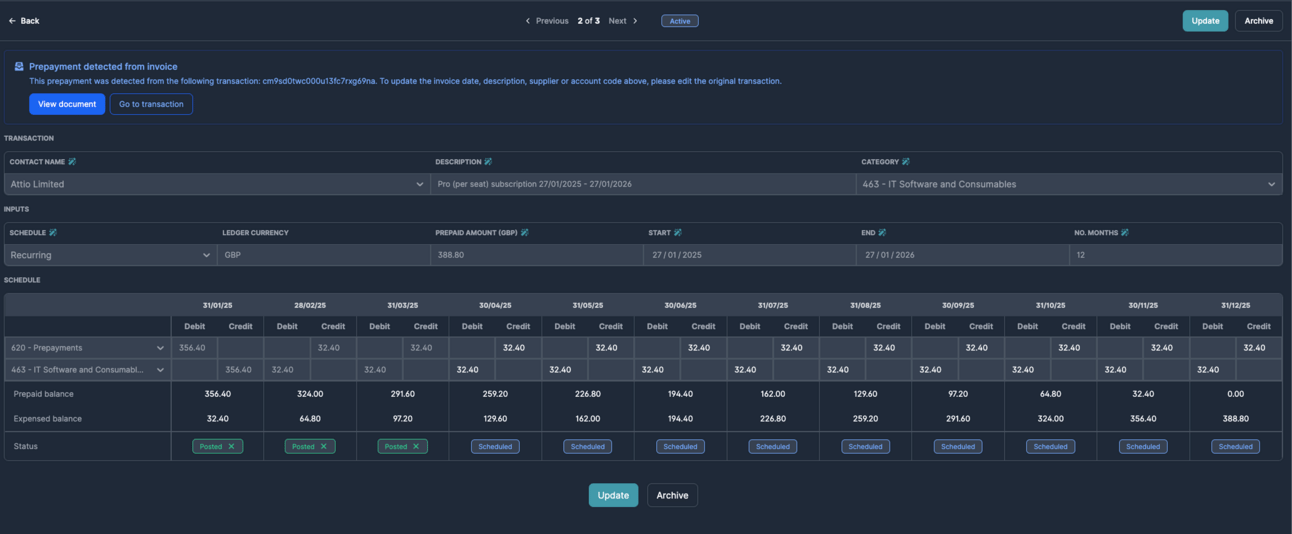
Review and publish the schedule, Briefcase will then post the journals on each period end. Prepayments can then be viewed in the tracker.
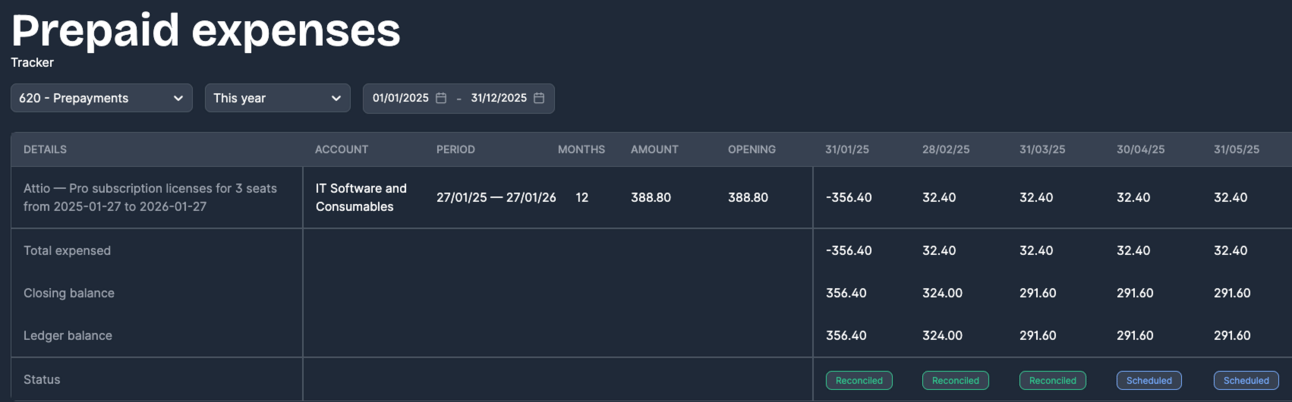
You are always in control, which means that you can always reverse journals, edit amounts, or archive the schedule whenever needed.
Migrating existing prepayments to Briefcase
Click "Add prepayment" within the prepayments inbox to manually create a prepayment.

Enter the total Prepaid Amount (excluding VAT) in your ledger currency.
Add the Opening Balance – the remaining portion still to be recognised in future months.
Set the Start Date as the date in which the prepayment started amortising
Set the End Date as the date in which the prepayment will finish amortising
Set the Release From Date as the date that you want Briefcase to start posting amortisation. Briefcase will then calculate an estimate of the prepaid balance for each period between the Start Date and the Release From Date (i.e. the periods of amortisation that have already been posted):
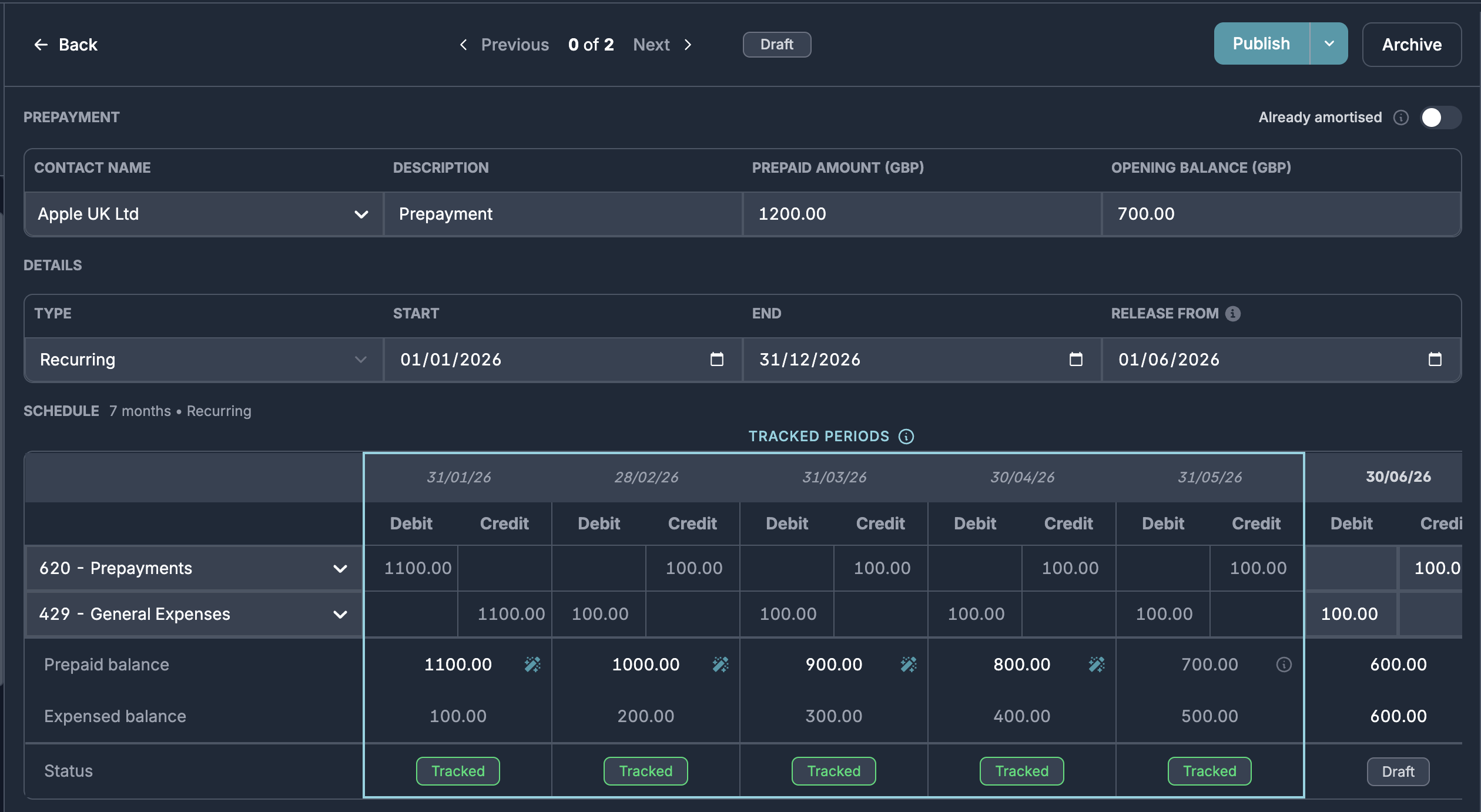
Review the tracked periods and update the prepaid balance estimates if anything is wrong.
Choose the appropriate Account Code and hit Publish.
Don’t forget to remove any recurring journals for this prepayment in your ledger to avoid double posting.
Briefcase will not post prepayment journals for the tracked periods. We assume that this is already posted.
Adding prepayments that have already been fully amortised
Briefcase supports the ability to add existing prepayments which are already fully amortised for tracking purposes. This is useful if you are using Briefcase's prepayments tracker or Briefcase Working Papers. To do this:
Click "Add prepayment" within the prepayments inbox as normal.
In the top right, click the "Already amortised" switch:
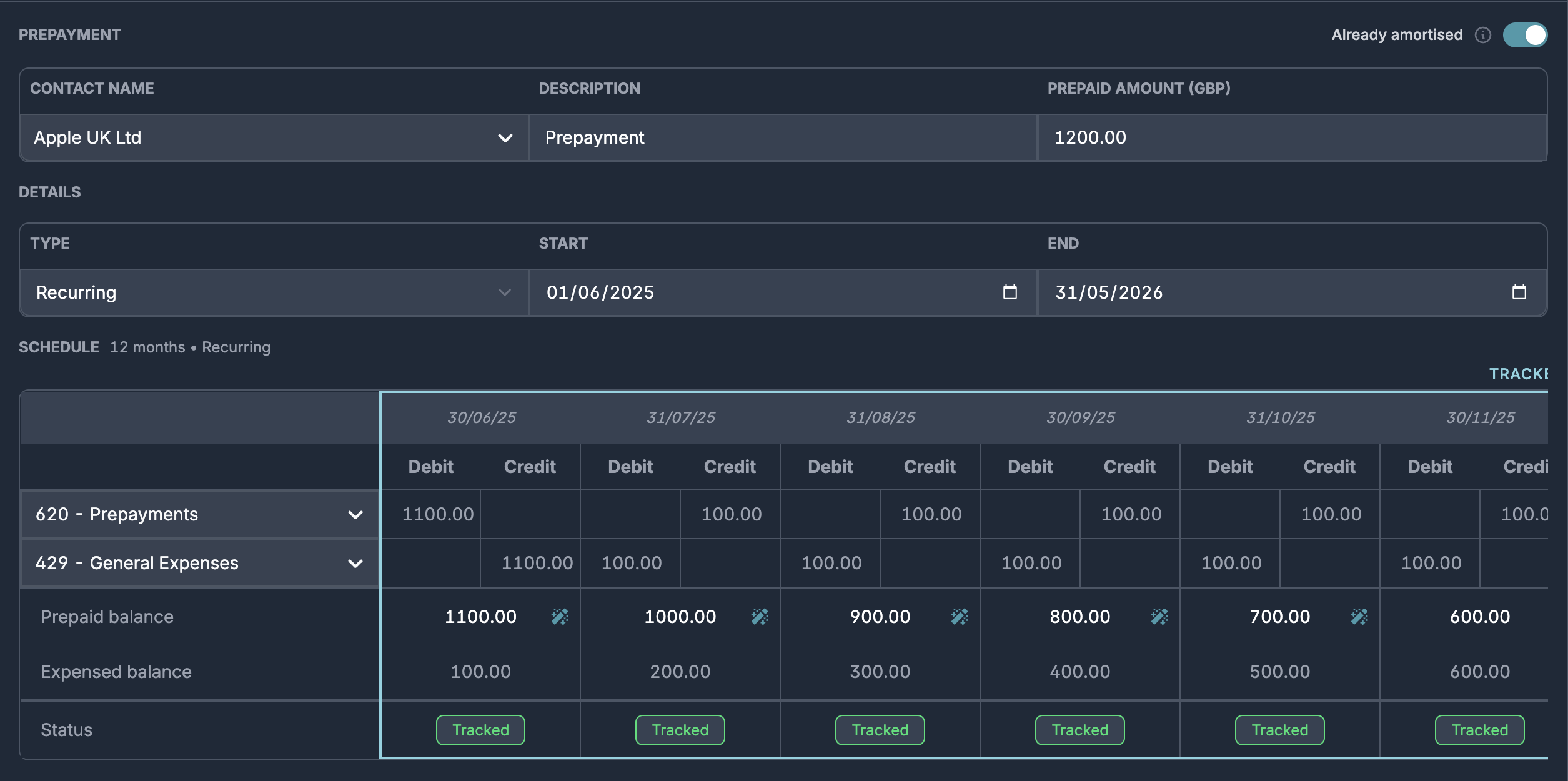
Fill in the rest of the information as normal. You will notice that all the periods are shown as tracked periods. This means that Briefcase will not post any journals to your ledger.
Review the schedule and update any of the prepaid balance estimates for each period if they are wrong. This will ensure that the tracker reconciles correctly
Review and publish the schedule as normal
Managing your prepayments tracker
You can easily export the prepayments tracker in Briefcase into a CSV by selecting "Export CSV".
You can also filter the prepayments tracker by category, time period, and date range.

Manually marking a transaction as a prepayment
If our prepayment AI agent did not correctly detect and classify an invoice as a prepayment, you can do this manually within the invoice page by selecting "Mark As" and then "Prepayment".

Tracking categories for prepayments
Add a tracking category to a prepayment schedule and we’ll assign it automatically to every journal the schedule generates.

Choosing how prepayments is spread: monthly or daily proration

To set it once for a client, use the firm-wide default in Business Settings → Prepayment & deferred income proration, which applies to both prepayments and deferred income - you can still override an individual schedule before publishing.
