How does Briefcase handle Accrued Expenses?
How does Briefcase handle Accrued Expenses?
This guide explains how Briefcase detects recurring expenses, suggests accruals and reversals, and how to review and post them from the Accrued Expenses inbox.
When you upload an invoice, Briefcase first codes the transaction as part of the bookkeeping workflow. It then analyses the invoice to identify recurring expenses and suggests any accruals or reversals that may be needed.
How it works
Accruals
Upload an invoice via email, the web app or WhatsApp. Once the invoice has been processed, Briefcase analyses it and groups it with similar invoices if it detects a recurring expense.
Recurring expenses can currently be identified on the following frequencies:
Monthly
Quarterly
Annual
At the end of each month, Briefcase checks whether any recurring expenses are missing an invoice for that period. If an expected invoice hasn’t arrived, Briefcase suggests an accrual by:
Debiting the expense account
Crediting the accruals (liability) account
The suggested journal appears in the Awaiting review section of the Accrued Expenses inbox, ready for you to review before posting.

Reversals
When a new invoice arrives for a recurring expense, Briefcase checks whether there’s an outstanding accrual for the same accounting period.
If it finds one, Briefcase creates a matching reversal by:
Debiting the accruals account
Crediting the expense account
If several reversals belong together, they’re grouped into a single item (for example, Reversals Jan 2026 – Mar 2026) so you can post them in one click. Select Show to view the individual reversal journals before posting.

Suggested accruals and reversals are never posted automatically. Review each adjustment before posting it to your ledger.
Managing your accrued expenses tracker
The accrued expenses tracker shows you a breakdown of the closing accrued balance and monthly net movement on a per-accrued expense basis as well as overall.

Hovering over a cell in the table, will give you a detailed breakdown of how the closing balance and net movement was calculated

In the summary rows at the bottom, we retrieve your ledger's balance and automatically reconcile it to ensure accuracy and consistency.
You can also export the accrued expenses tracker in Briefcase into a CSV by clicking "Export" in the top right corner.
Manual Accrued Expenses
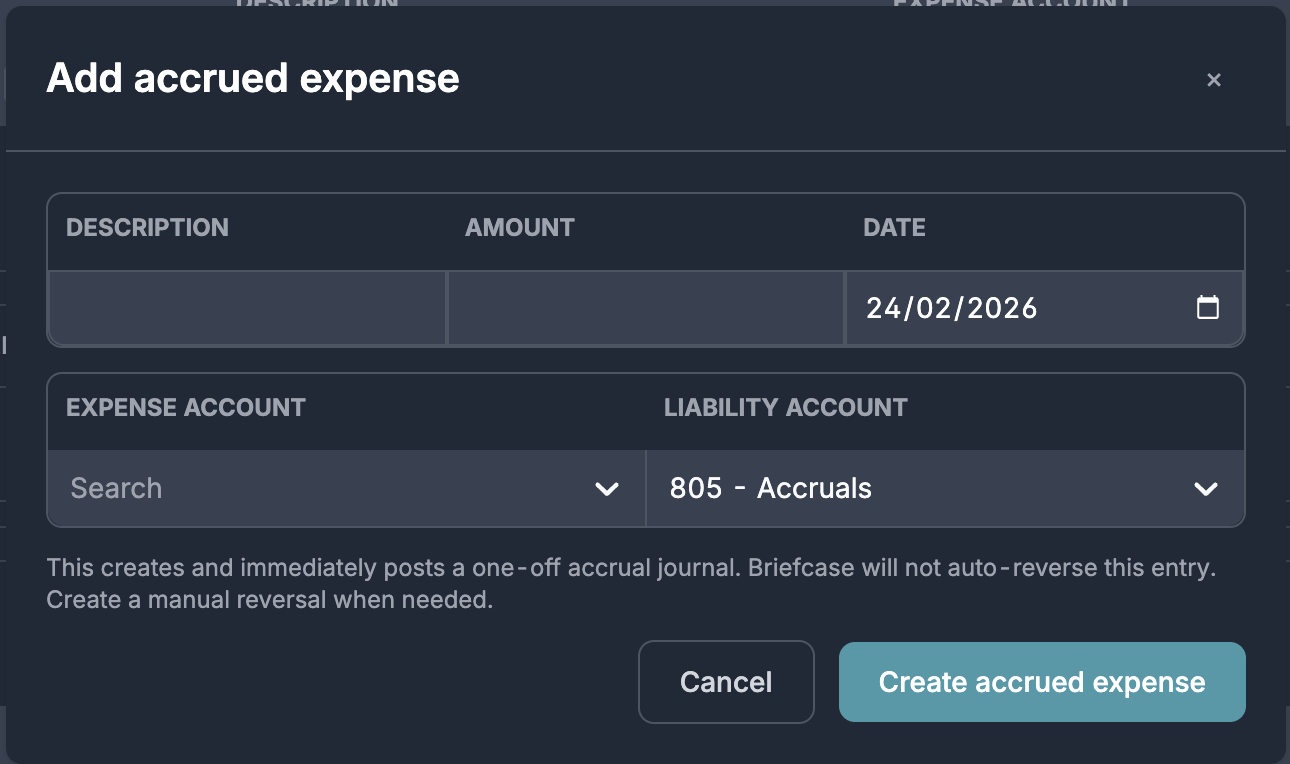
You can also create accrued expenses manually.
Select Add accrued expense, then enter:
Description
Amount
Accrual date
Expense account
Liability account
Briefcase automatically selects your default accruals account, although you can change it if needed.
If your ledger uses tracking categories, classes or departments, you can assign those as well.
By default, Briefcase immediately creates and posts the accrual journal to your ledger.
If the journal has already been posted outside Briefcase, select Track only (already posted to ledger) instead. This records the accrued expense in Briefcase without creating another journal.
Reversing a Manual Accrual
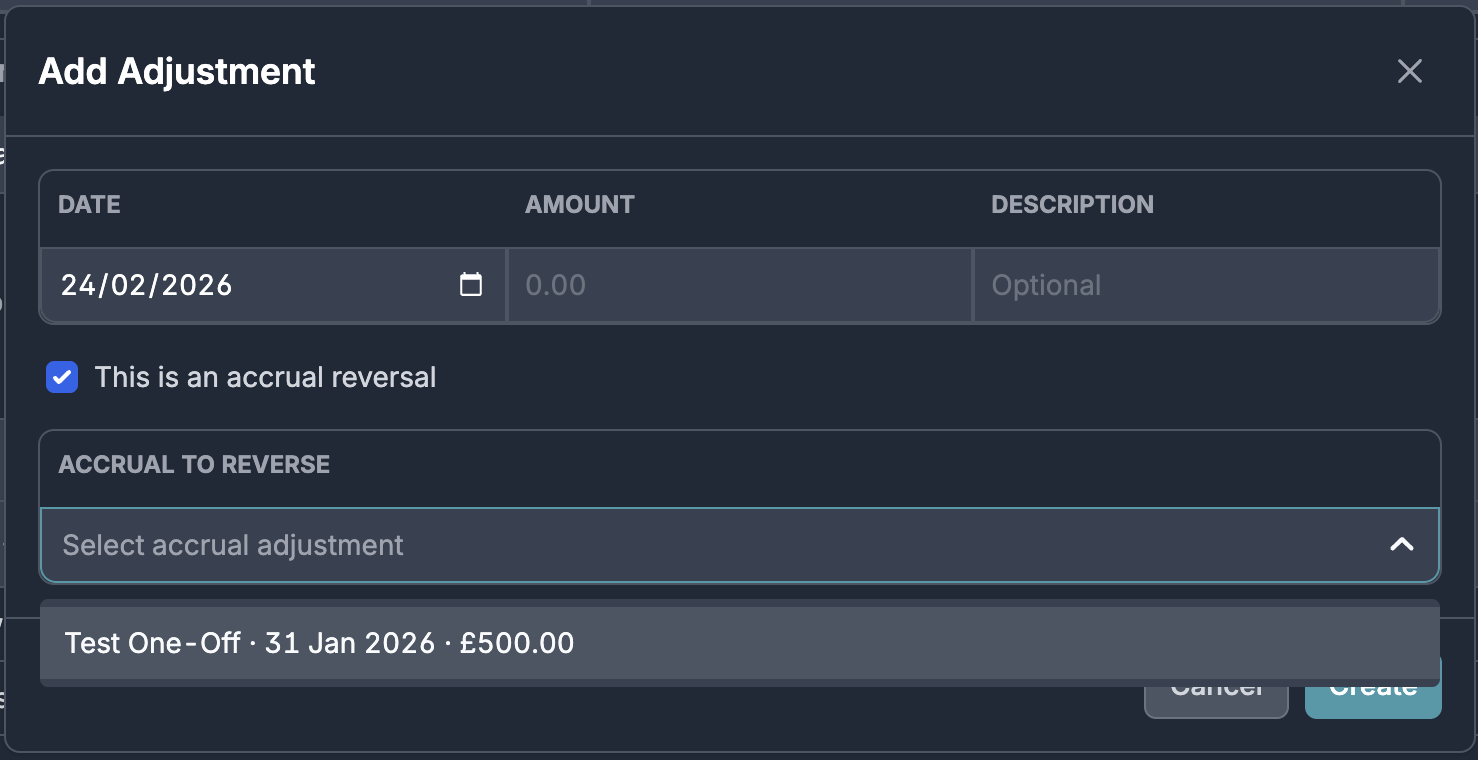
Briefcase doesn’t automatically reverse manual accrued expenses.
When you’re ready to reverse one:
Open the accrued expense from the Active section.
Select Add adjustment.
Enable This is an accrual reversal.
Choose the original accrual to reverse.
Review the journal and select Create.
The reversal is linked to the original accrual, making it easy to track the complete history.
Multi-line accrued expenses
Briefcase currently only supports automatic accrual suggestions for single-line invoices.
Invoices containing multiple line items won’t be analysed for recurring expenses or receive automatic accrual suggestions.